Starting and accessing a Jupyter Notebook (Windows)
To run a Jupyter Notebook in the DTU databar while displaying it output in your browser requires three steps.
Starting the notebook on an interactive compute node.
Make a connection to the relevant compute node, bypassing the firewall.
Connecting your browser to the Jupyter Notebook process.
Logging into the databar
If you are not already logged into the databar, do so by starting
MobaXterm. There should be a session available from the welcome
screen of MobaXterm named login.gbar.dtu.dk or similar, created
when you logged in the first time. Click on it to log in again.
Once you are logged in on the front-end, get a session on an interactive compute node by typing the command:
linuxsh -X
Starting a Jupyter Notebook
Change to the folder where you keep your notebooks (most likely CAMD2024) and start the Jupyter Notebook server:
cd CAMD2024
camdnotebook
The command camdnotebook is a local script. It checks that you
are on a compute server (and not on the front-end) and that X11
forwarding is enabled. Then it starts a jupyter notebook by running
the command jupyter notebook --no-browser --ip=$HOSTNAME
(you can also use this command yourself if you prefer).
The Notebook server replies by printing a few status lines, as seen here

Figure 1: A MobaXterm window showing a running notebook server. The compute node name and port number are seen in the second-to-last line.
The important line is the second from the bottom, it shows on which
computer and port number the notebook is running (here n-62-30-8
and 40000, respectively).
Create an SSH Tunnel to the notebook
Use MobaXterm to create a so-called SSH Tunnel from your laptop (which cannot connect directly to the compute node) to the login server (which can).
In the top of your MobaXterm login window there is a row of buttons.
One of them is named Tunneling, press that button.. You now get a
new window called MobaSSHTunnel, in the lower left corner of the new
window you find a button called New SSH Tunnel, press it. A new
window opens, as shown here:

Figure 2: The window for creating the SSH tunnel.
In the field marked A you write the name of the compute node, and the
port number of the Notebook server. The machine name will have the
form n-XX-YY-ZZ (where XX etc are one or two digits - if the name
is gbarlogin you forgot to run the linuxsh command mentioned
at the top of this page!) The port number is typically 40000 or a
number slightly above or below. You see the name and port number on
the output from the notebook server (Figure 1).
In the field marked B you repeat the port number
In the field marked C you should write the name of the
“stepping-stone” computer, in this case use login.gbar.dtu.dk. You also need to
enter your user name (test2024 in the figure). Leave the port
number blank!
Now press the button Save. You will now see a window like the one
shown here:
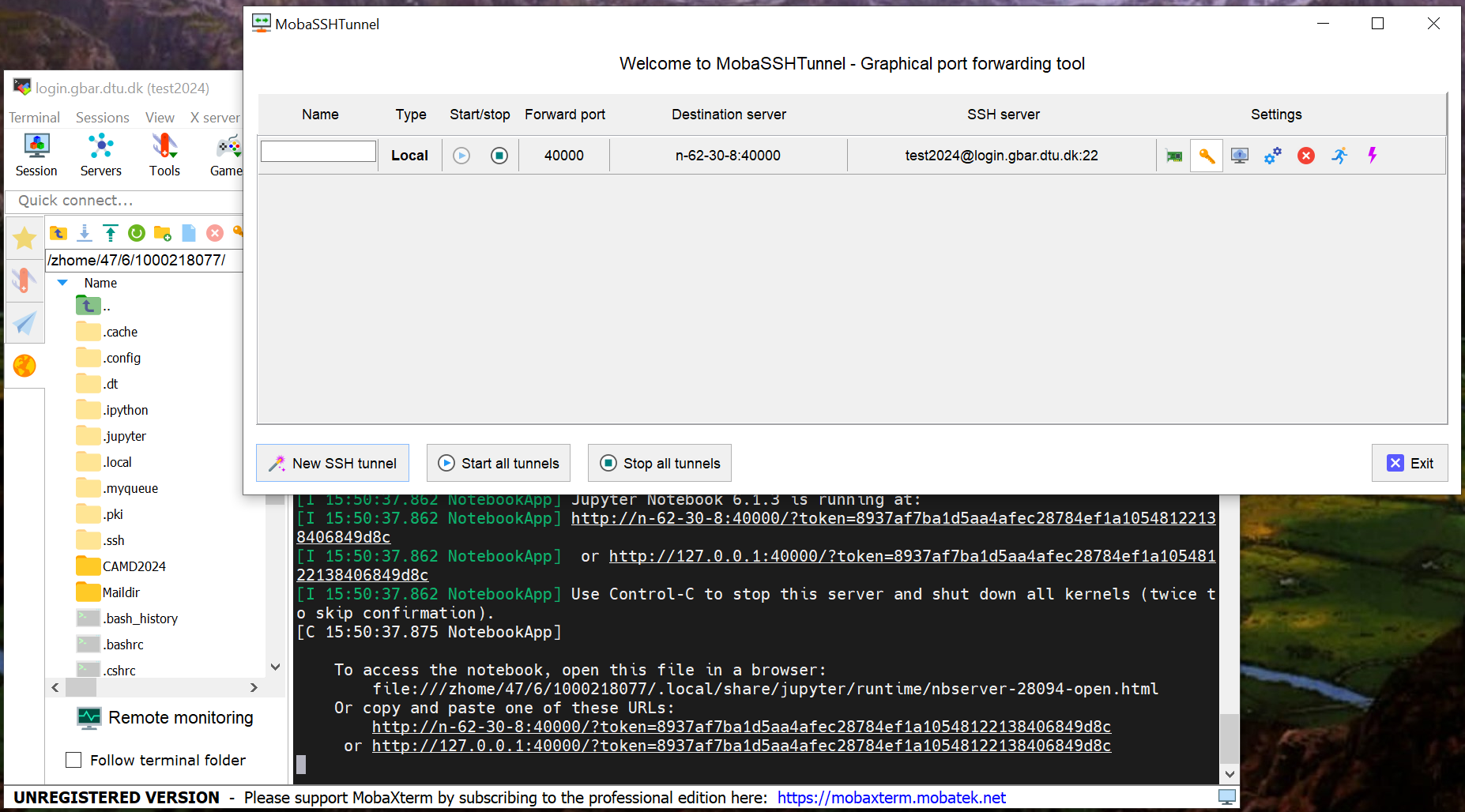
Figure 3: The main tunnel window. You start the tunnels from here. Note that when the tunnel is running the “start” button is grayed out, as shown here. If starting the tunnel fails, the “stop” button remains grey, but unfortunately no useful error message is given.
Check that the machine name and port number are correct, then start the tunnel by pressing the small “play” button (with a right-pointing triangle).
IMPORTANT: When you log out from the databar and log in again (e.g. on the following days of the summer school), you will get a new compute node. You will therefore need to start a new Jupyter Notebook server, and create a new SSH tunnel as described above. Then you have to be careful and start the right one. You can also edit the existing connection by clicking the cogwheels icon in Figure 3.
Starting a browser.
Start a browser (Chrome and Firefox are known to work well) copy the
link from the Jupyter notebook output which starts with
http://127.0.0.1 into the address bar of the browser. Be sure to
include the long token string. Double-clicking on the underlined link
in MobaXterm will automatically copy the link to your clipboard so it
can easily be pasted into your browser. It will look something like this:
http://127.0.0.1:40000/?token=40a0c88a6cdb425671a64d35e33e24ca198bb456ee96f237
You are now ready to open one of the notebooks, and run the exercises.
Logging out
When you are done for the day, please
Save all notebooks, then select
Close and Halton the file menu.Stop the SSH tunnel.
Stop the Jupyter Notebook server by pressing Control-C twice in the window where it is running.
Log out of the databar by typing
exittwice in the window(s).