Setting up ThinLinc the first time (All laptops)
Configuring your secret key
For security reasons, all access to DTU’s HPC from outside the university requires an encryption key (SSH key). You get your secret SSH key by connecting to https://www.student.dtu.dk/~dccidmgr/CAMD24 then add your user name to the end of the URL and press enter (Guest accounts only, DTU users please do this instead). You will now be asked to authenticate with username and password, when you have done that right-click on the link to save the file. Save it on your laptop.
Install ThinLinc
Download and install ThinLinc for your computer:
Go to https://www.cendio.com/thinlinc/download/ and download the version for your operating system.
Install the program.
On Windows and MacOS, launch the program by choosing the ThinLinc icon.
On Linux, you may need to start a terminal window and type
tlclient.
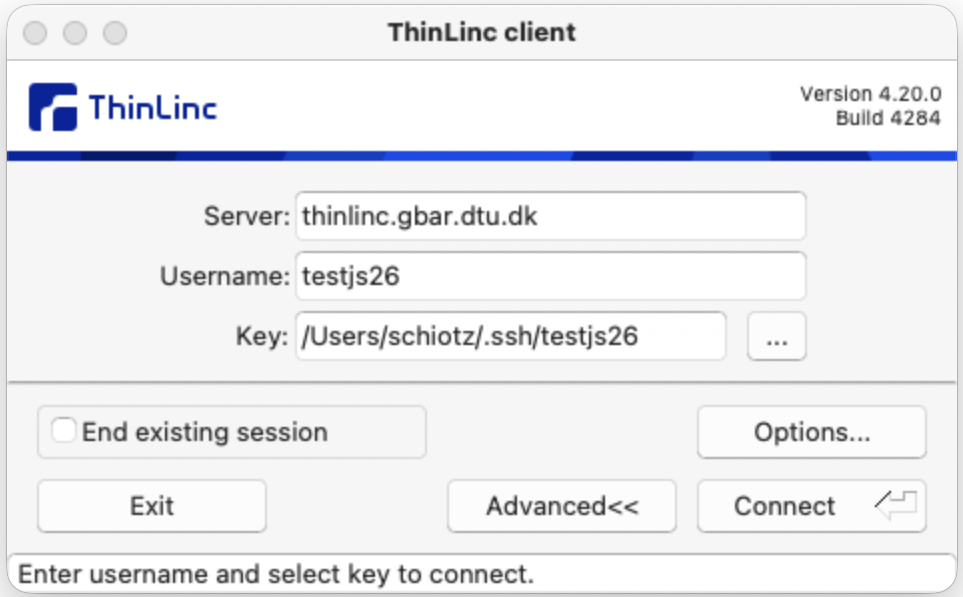
Fill in the server and user name, but not the password. The server is thinlinc.gbar.dtu.dk. Click on Options… then choose Security and for authentication method select Public Key. Close the Options window. The Password field has now been replaced with a Key field, click on the three dots to select the file you downloaded above.
Then click Connect. You probably get a warning about an unknown host, followed by an informational window. If you get an error message, see next section.
Error: The specified key has too open permissions
This happens on MacOS and Linux if the secret key is readable by other users (even if you are the only user of the system).
MacOS: Right-click the file, then choose Get Info. At the bottom, open Sharing and Permissions. To fix it, you need to click on the padlock in the lower right to unlock. Then change permissions for
everyoneandstafftoNo Access. If you cannot set staff to No Access, then select the line and use the minus button to remove it altogether. Then close the Info window and try to connect with thinlinc again.Linux: You need to open a terminal window, then use the
cdcommand to navigate to the folder where the file is (or sometimes you can find the file in the file viewer, and then there is a menu option to open a terminal). Then type this command line. The cryptical middle word is two letters, a minus, and two letters, without spaces inbetween. But remember the space between the command and before the file name:chmod og-rw filename
Replace
filenamewith the actual name of the file.Then try again to log in.
Using thinlinc
ThinLinc should remember your settings, so you just need to click Connect to connect again.
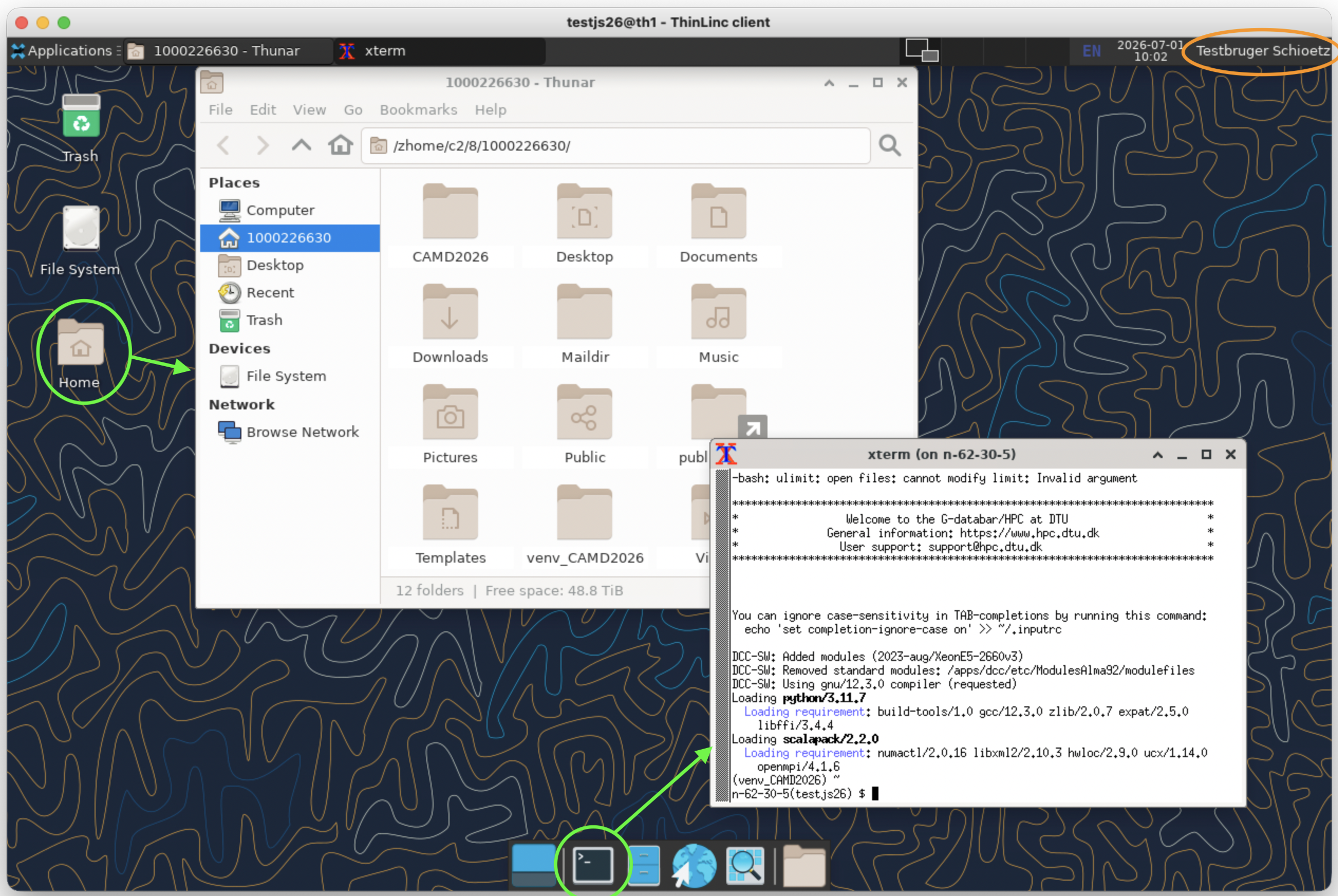
Once logged in, you see a desktop (as shown below). Click on your Home icon to see your files, and on the Terminal icon to open a terminal (green circles in the screenshot below). Only click once, it takes a few seconds before the new window appears.
IMPORTANT: Logging out. When you are done, please log out by clicking on your name (orange oval) then select Log Out. Failing to log out may keep your session alive and consume computational ressources.
Now proceed to set up the software (next section, below the screenshot).
Setting up the software
To give access to the software you need for this course, open a terminal window. The run the command:
source ~jasc/setup2026
Note the tilde in the beginning of the second word. The script installs ASE, GPAW and related software. The script will also copy a selection of draft notebooks to a folder called CAMD2026 in your DTU databar account.
Carrying on
In the following instructions you might see comments about remembering to run linuxsh. As a ThinLinc users you should not do that. It is done automatically when you open a command line window!
Now read the guide for Using the DTU computers interactively.